
- AIGC tutorial
- Stable Diffusion
- LoRA
- Model Training
Stable Diffusion LoRA Training for Beginners: Notes, Pitfalls, and Practical Lessons
My first LoRA training project took a weekend of troubleshooting, refinement, and testing before I published the model on LiblibAI. This article records my approach, training steps, and solutions to the problems I encountered, as a reference for beginners.

Last week, I tried training a LoRA model for the first time. I spent the weekend running into problems, working out solutions, refining the model, and testing it. Fortunately, I resolved each problem and published my first model on LiblibAI. 👏👏👏
This article records my approach and training steps, along with the problems I encountered and how I solved them. I hope it gives other beginners a useful starting point.

LoRA stands for Low-Rank Adaptation. It was introduced in the 2021 paper “LoRA: Low-Rank Adaptation of Large Language Models.” In simple terms, it is a fine-tuning method that reduces the number of parameters that need to be trained while aiming to retain the model’s performance.
Before I encountered LoRA in Stable Diffusion, the approach I knew for customising a full model was DreamBooth. If the result was unsatisfactory, I would need another training run, and working with a full model demanded substantial computing resources and time. LoRA lowered the barrier and broadened the possibilities for custom models. It made it more feasible for enthusiasts like me, without specialist expertise, to try training a model on a home computer.
There is plenty of information online about how LoRA works and the theory behind it. I will not go into that here; interested readers can explore it further.


Training a LoRA has certain GPU requirements. A few additional tools can also make the process easier.
The main hardware consideration is GPU memory, or VRAM; the rest of the computer should have a reasonable specification. For the SD 1.5 setup discussed here, 6 GB of VRAM was barely workable, while 8 GB made image generation and LoRA training more manageable. Around 12 GB could support DreamBooth fine-tuning more comfortably. My Mac was not an option for this setup, and my Windows computer was not especially powerful, so training was slow but just about workable.
Next, I recommend downloading a few tools that can make training more approachable for beginners and improve efficiency.
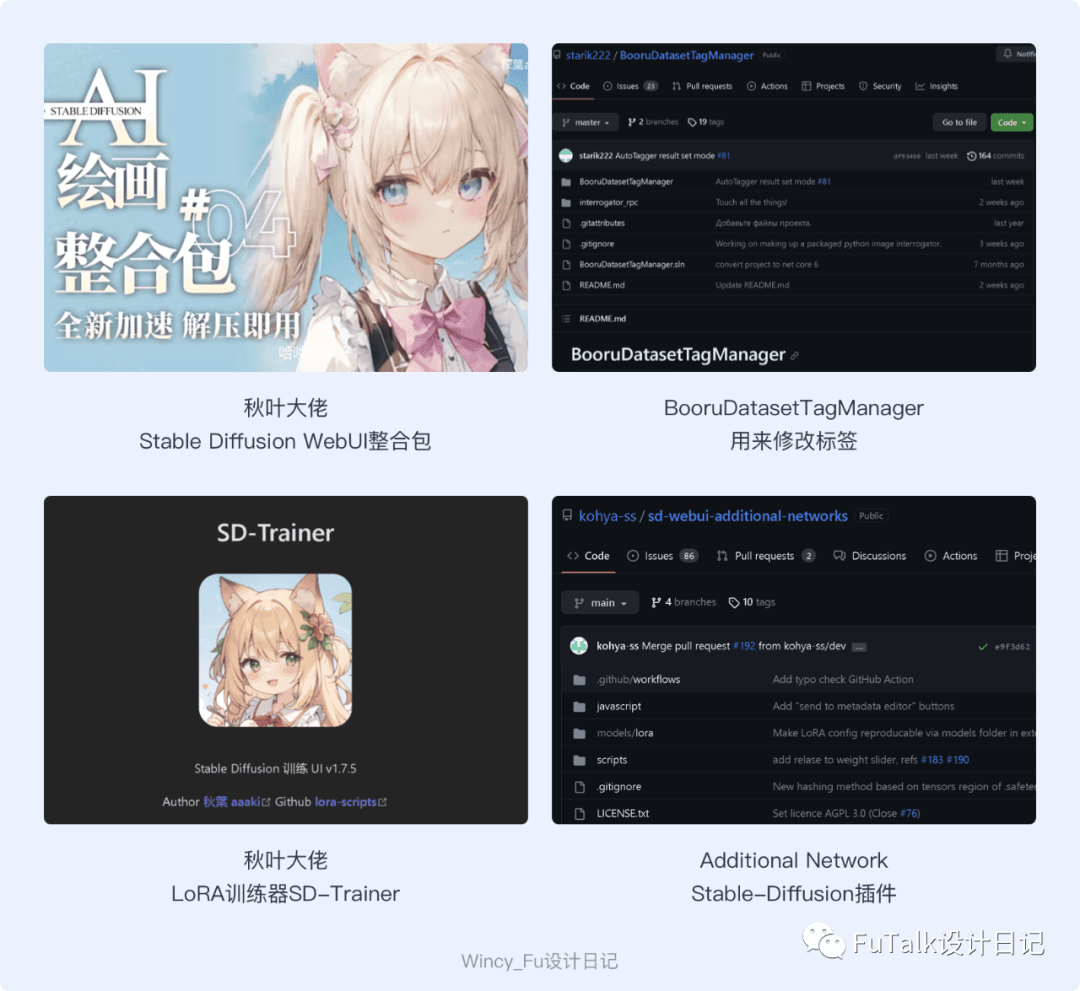
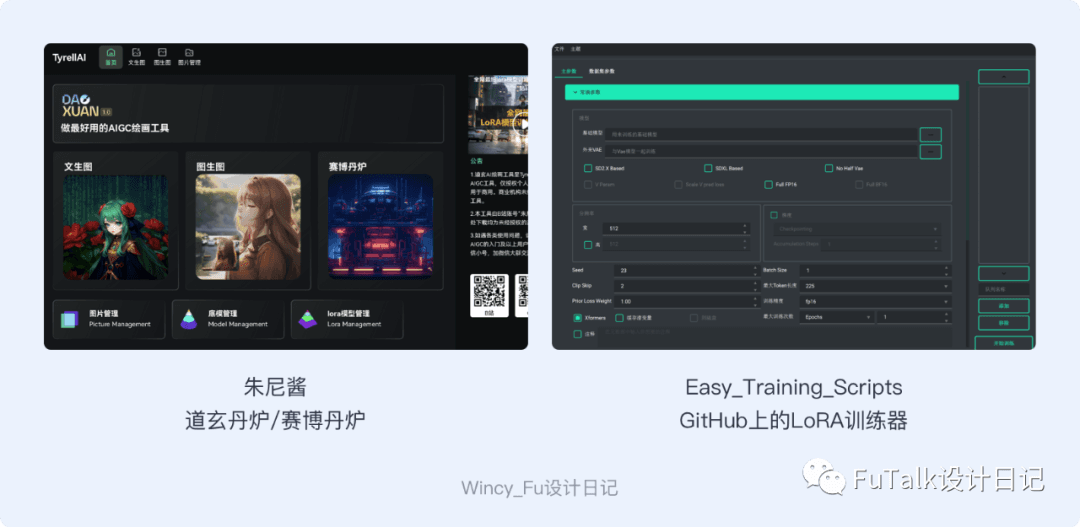
I have also downloaded other LoRA training tools, although I have not tried them yet. You can explore them yourself if you are interested.

1. Define Your Goal
Before training a LoRA, decide what kind you want to make. Some creators group them into character, art style, concept, clothing, object, or specific-element models.
For my own purposes, I used two broad categories: specific subjects and broader visual characteristics. Specific subjects include an object, pose, outfit, person, or particular element. Broader characteristics include a type of scene, an artistic style, or a colour palette.

A clear goal helps you decide how many training images to collect and which base checkpoint to choose, laying the groundwork for training.
2. Build the Dataset
⚠️ Choosing the base checkpoint and ensuring image quality are both crucial when preparing the dataset.
When collecting images, I continued to distinguish between specific subjects and broader styles, according to the goal defined in the first step.
For a specific-subject LoRA, more images are not necessarily better. Around 20 is a useful starting point. Choose clear, unobstructed images that vary in angle, background, pose, and clothing.
⚠️ Too many similar images can bias what the model learns.
For a broader-style LoRA, I would start with more images—50 or more as a reference.
⚠️ Similarity is less of a concern here, but very similar images should still not dominate the dataset.

3. Prepare the Dataset
From this point, I used the tools mentioned earlier. Dataset preparation involves standardising image dimensions, generating captions or tags, and refining them.

a. Standardise Image Dimensions
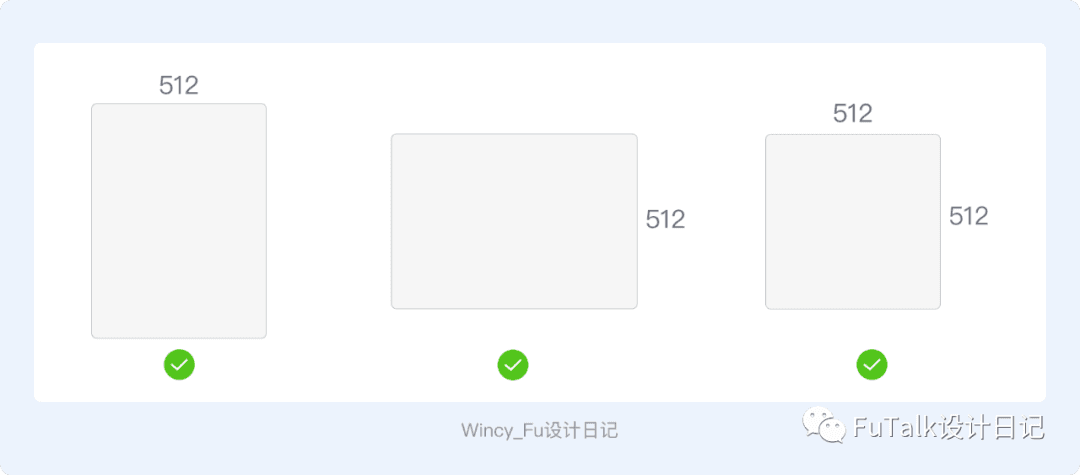
Use a batch image-resizing tool. In this workflow, I aimed for at least 512 pixels on one side and dimensions that are multiples of 64. Portrait and landscape images can be trained together. You can also crop images yourself in Meitu or Photoshop.
b. Generate Captions and Tags
I used Qiuye’s Stable Diffusion WebUI package. Launch SD, then open Train → Preprocess images.
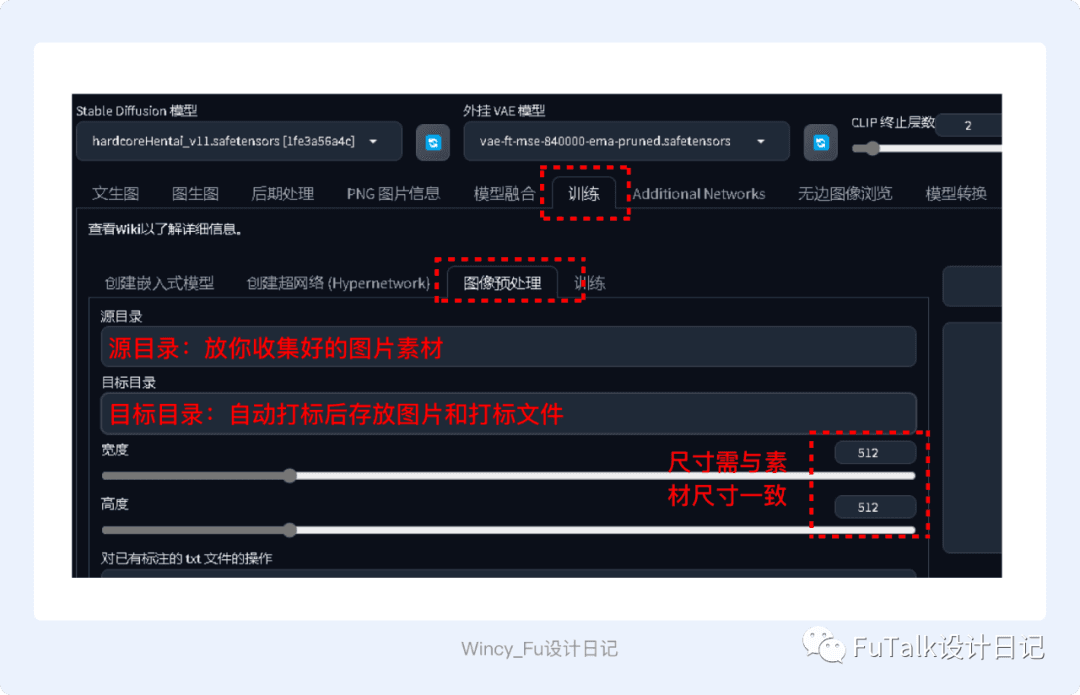
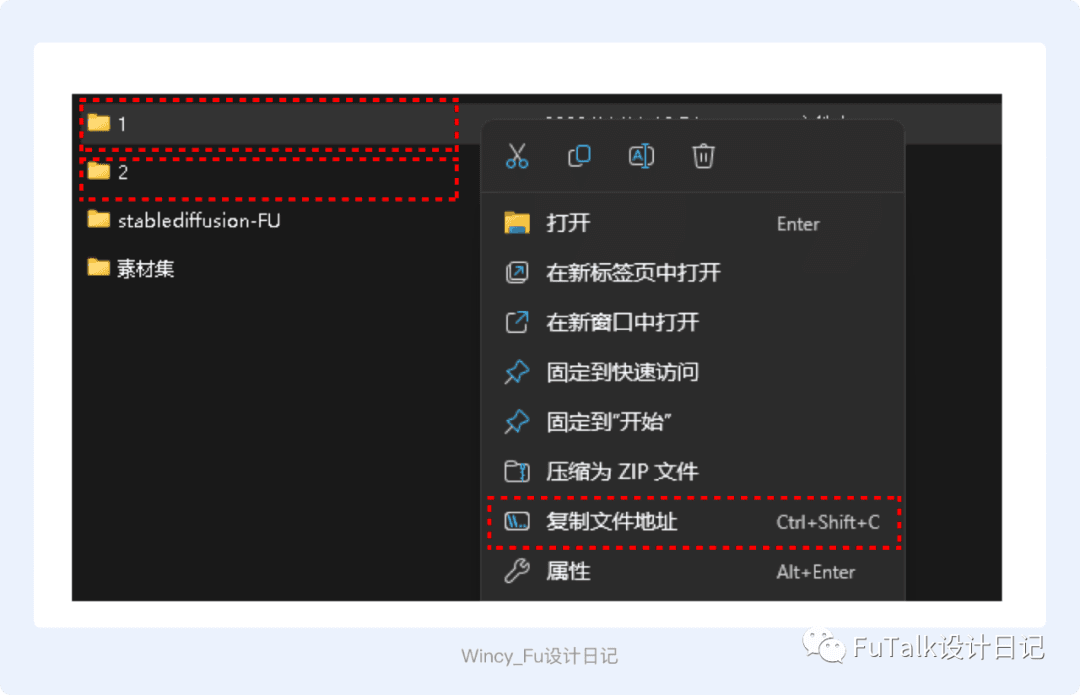
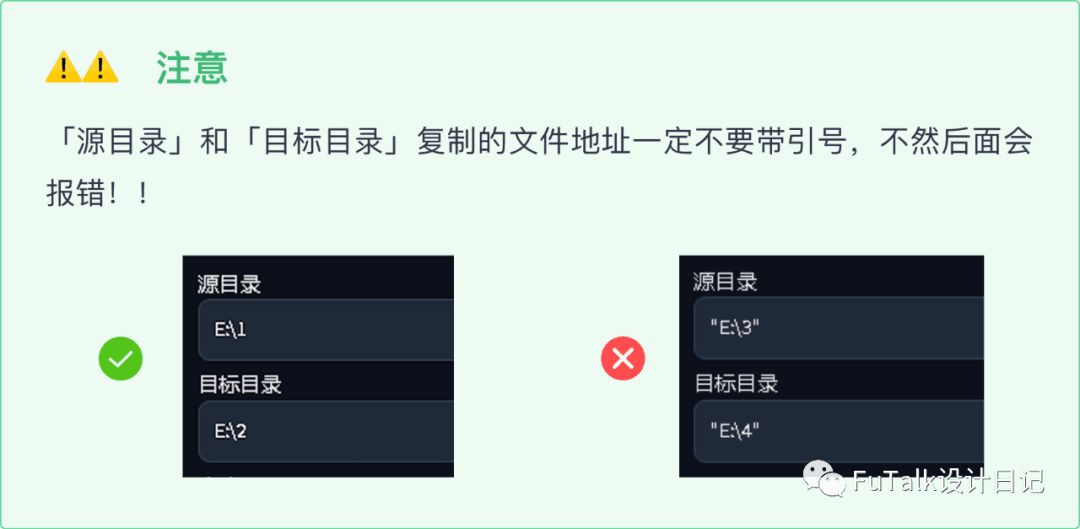
Create two folders on any drive. I simply called mine 1 and 2. Folder 1 holds the collected training images and serves as the source directory. Folder 2 is the destination: after preprocessing, SD saves the images and generated caption files there. Set the width and height to match your image dimensions.
Copy the paths of folders 1 and 2 into the source and destination directory fields respectively.
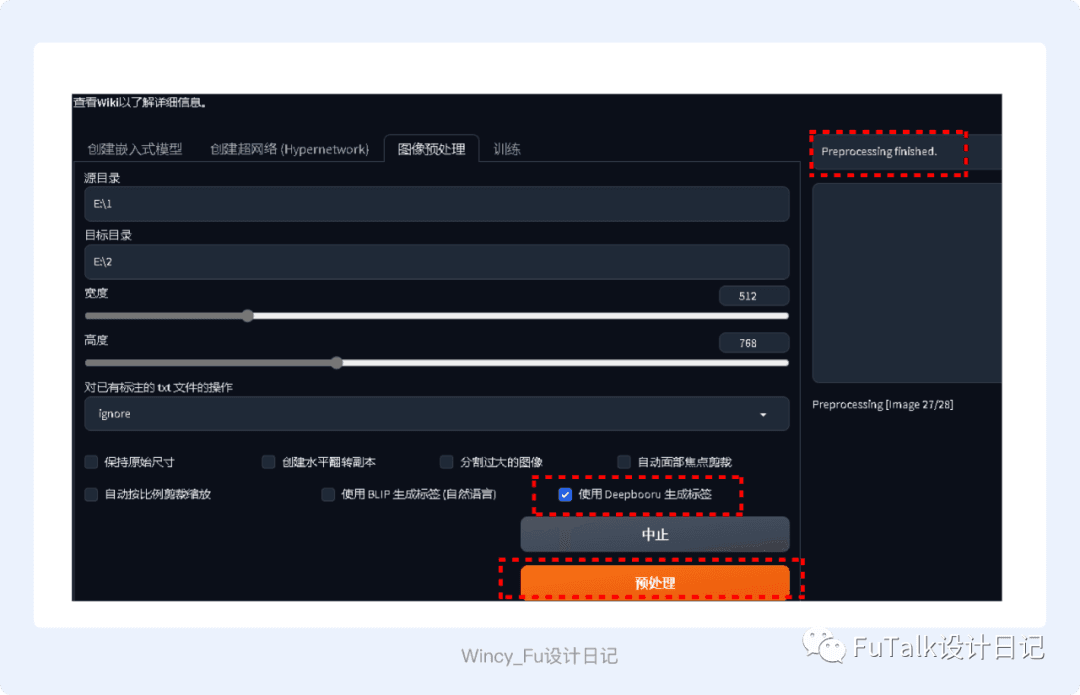
There are two ways to generate captions. BLIP produces natural-language descriptions, such as “a girl dancing happily on the grass.” DeepBooru produces tags, such as “1girl, grass, dancing, laughing.” I generally used DeepBooru.
When “Preprocessing finished” appears on the right side of the SD interface, automatic captioning is complete.
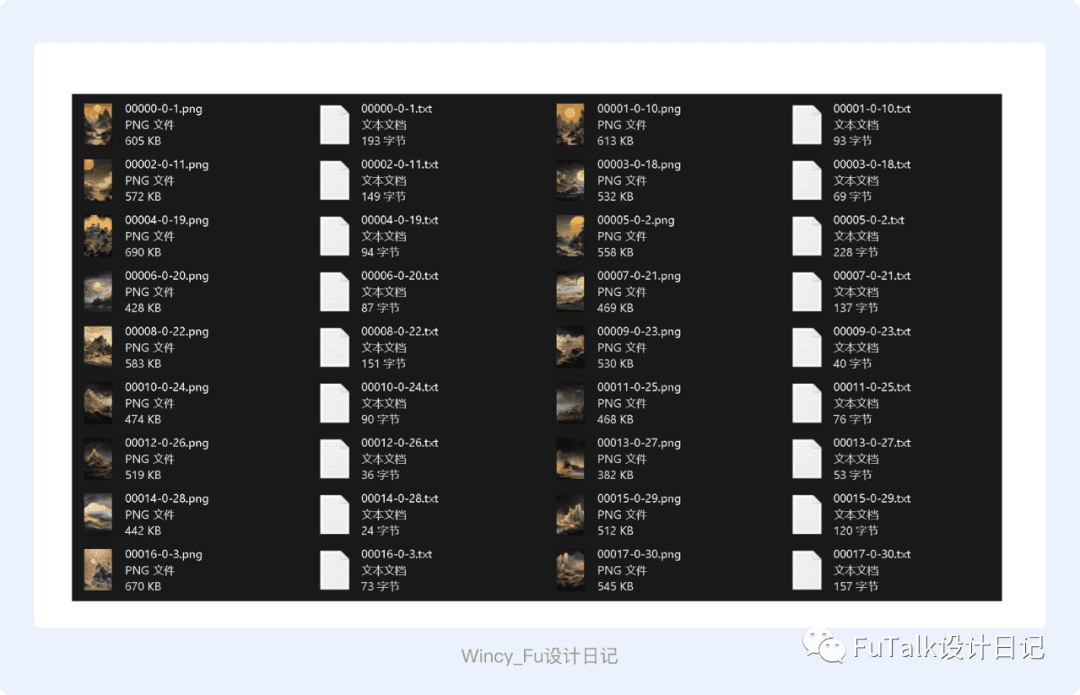
Open folder 2 to see the images and their automatically generated captions. The .txt files contain the tags generated by SD.
c. Refine the Captions
In my first attempt, I trained the LoRA without refining the captions, and the result was disappointing. For the second run, I added more images and edited the captions.
There are two common approaches: keep all the tags, which is convenient but may require precise prompts to reproduce the desired result; or remove selected feature tags. I chose the second approach.
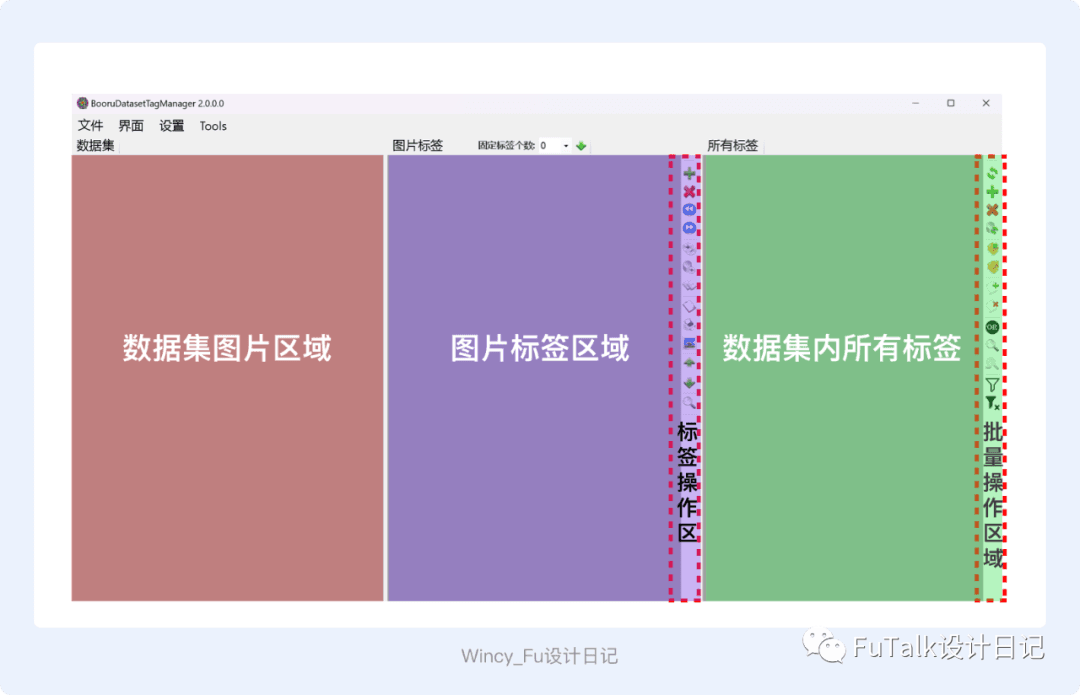
BooruDatasetTagManager is a batch tag-editing tool recommended by many experienced users. Its interface is fairly basic, but it lets you add, remove, edit, and search tags in bulk, as well as change their order to influence how they are treated. You can also edit the caption files in VS Code or a text editor.
After downloading it, double-click the .exe file. The interface has three areas: the dataset, the selected image’s tags, and all tags in the dataset. Controls beside the tag panels let you add, delete, translate, and move tags up or down. These are the functions I used most.
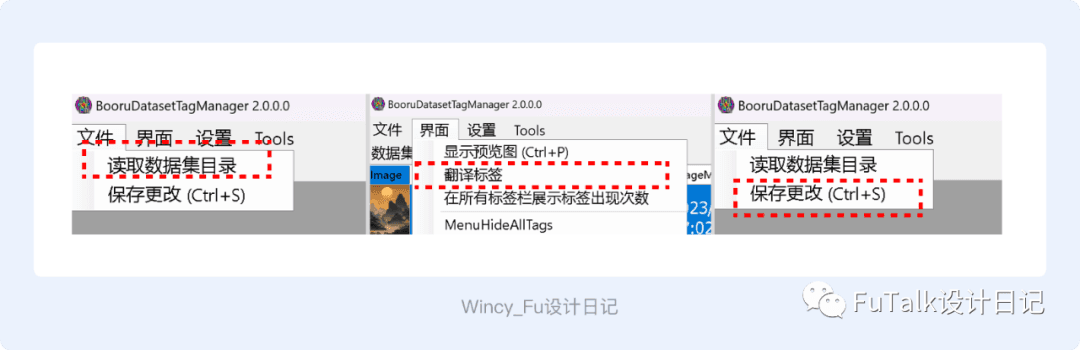
Use File → Read dataset directory to import the dataset. The interface’s Translate tags option translates the tags. You can drag them to change their order and emphasis. Remember to save all your changes when you finish.
After importing the dataset, compare each image with its tags and revise them as needed. In this workflow, I treated tag order as affecting emphasis, putting the desired effect or style near the beginning and more incidental tags, such as a clean background, near the end.
My caption-editing approach was to remove tags that explicitly described the style or feature I wanted the LoRA to learn. For a hand-drawn illustration LoRA, for example, I removed the tags describing that style and added a trigger word such as “shouhui” or “chahua.” The idea was to associate the trigger with those visual characteristics, so using it in a prompt would call up the learned style.

4. Configure Parameters and Start Training
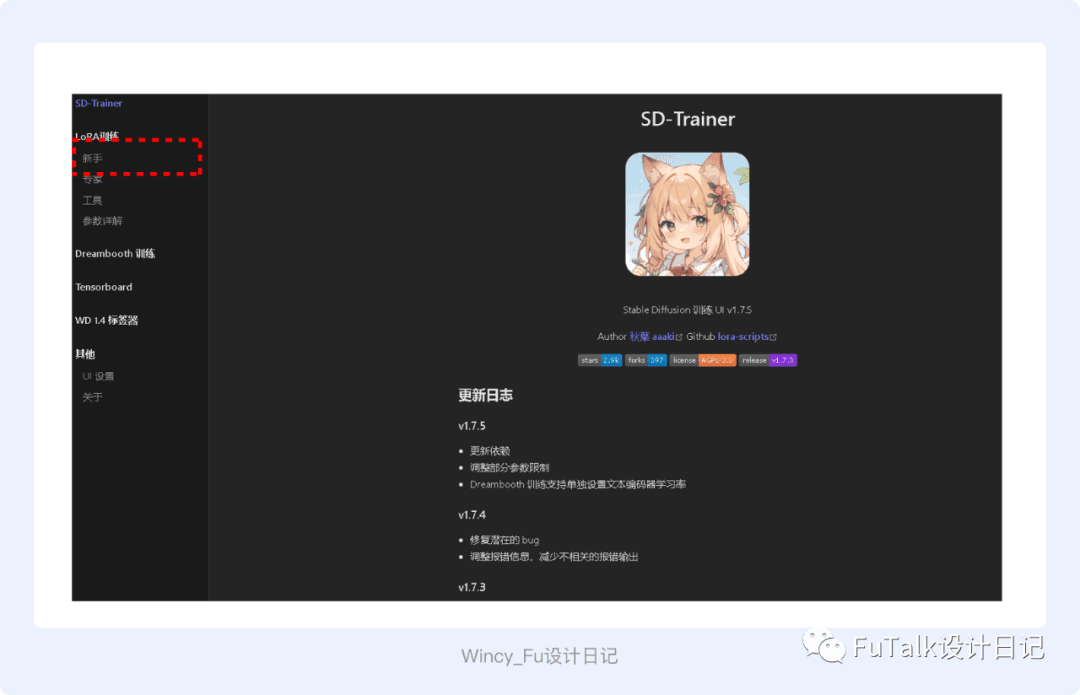
The preparation was now complete. I used Qiuye’s SD-Trainer LoRA training tool and selected beginner mode.
Key Concepts Before Training
Repeats: The number of times each training image is repeated.
Set this using the folder name in the format number_name. For example, a dataset named chahua with 10 repeats would go in a folder called 10_chahua.
Epochs: One epoch is one pass through the entire dataset, including the specified repeats. With 10 repeats and 10 epochs, each image is presented 10 × 10 = 100 times.
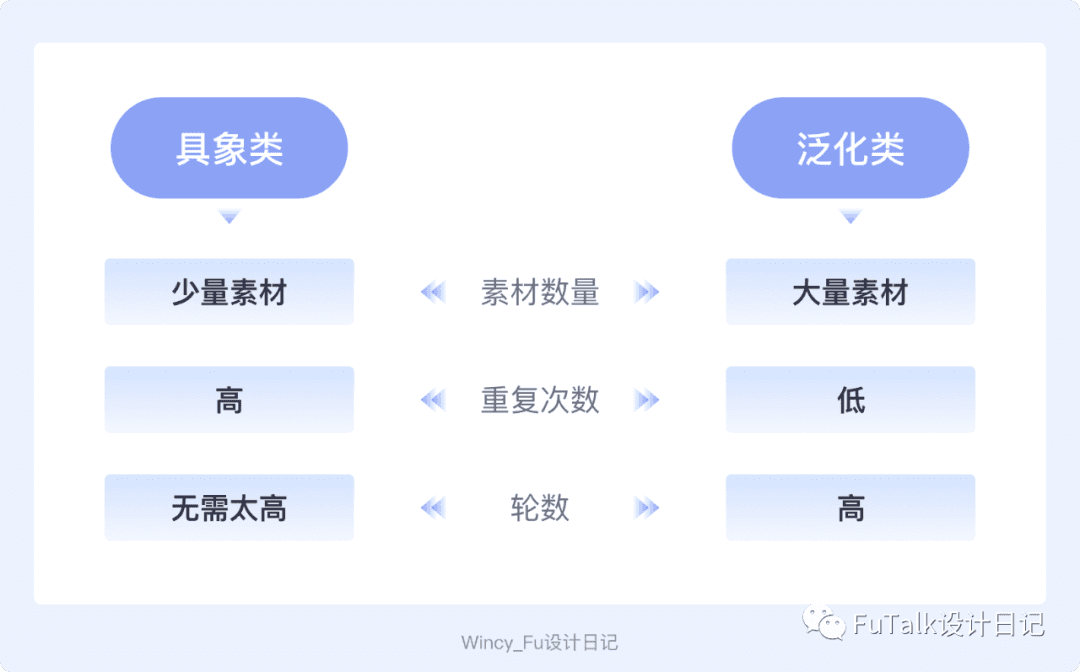
I also adjusted these settings according to the goal. For a specific subject, I used more repeats per epoch to focus on its details. For a broader style, I reduced repeats and increased epochs, learning gradually across more passes. In beginner mode, these were the main settings I needed to adjust.
In beginner mode, select the base checkpoint you will use to train the LoRA.
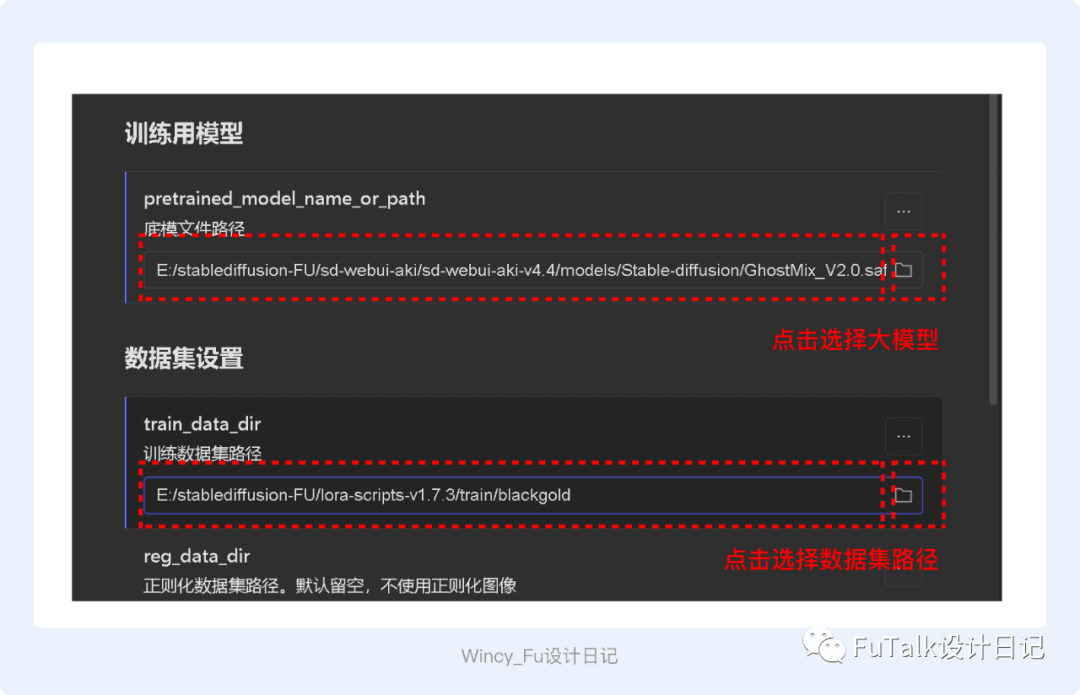
Base model path: Click the small folder icon on the right and select the checkpoint file.
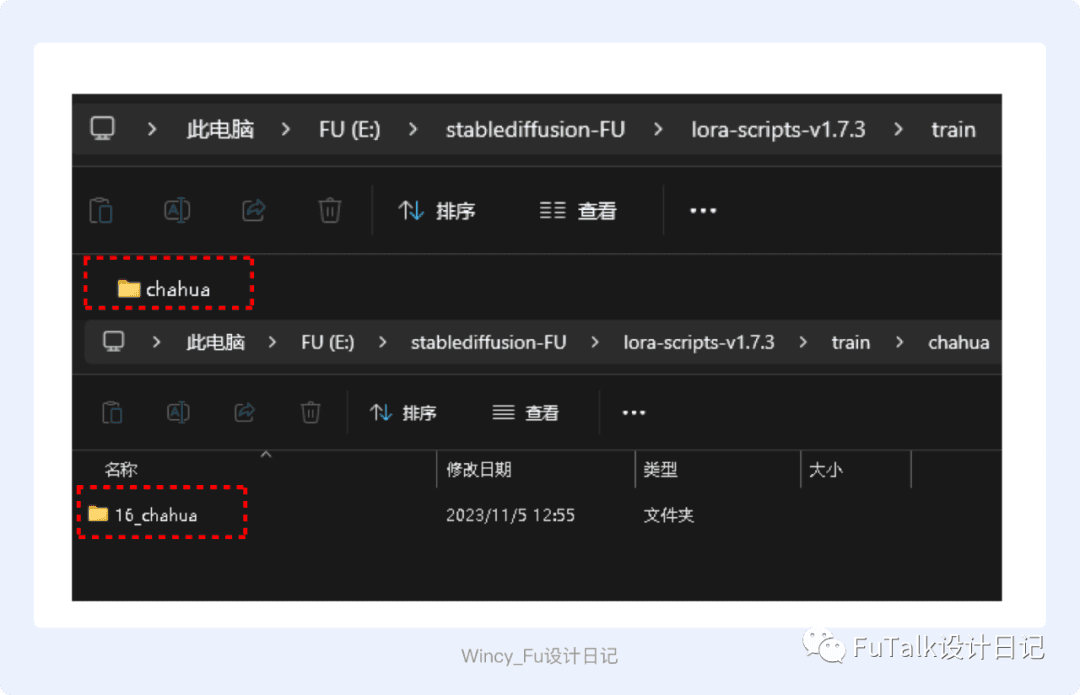
Training dataset path: First create a folder inside sd/lora-scripts-v1.7.3/train. Mine was called chahua. Inside it, create another folder named number_EnglishName and copy in the prepared images and their caption files. For example, to use 16 repeats for chahua, name the inner folder 16_chahua.
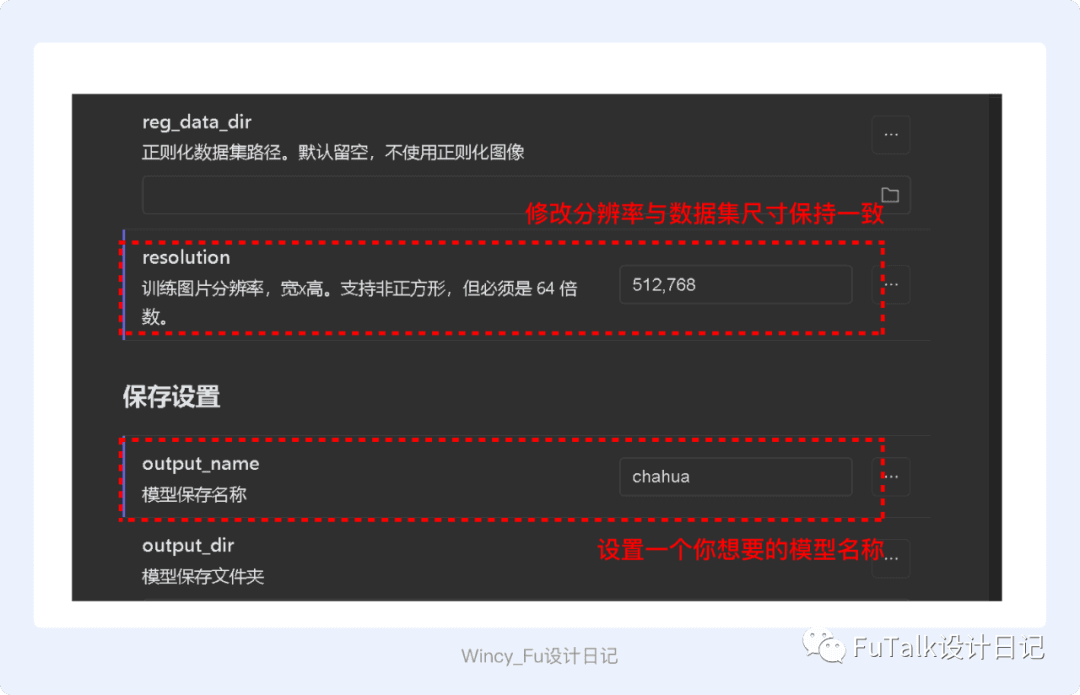
Set the resolution to match the dimensions used for your dataset.
Save settings: Change the output model name to the name you want.
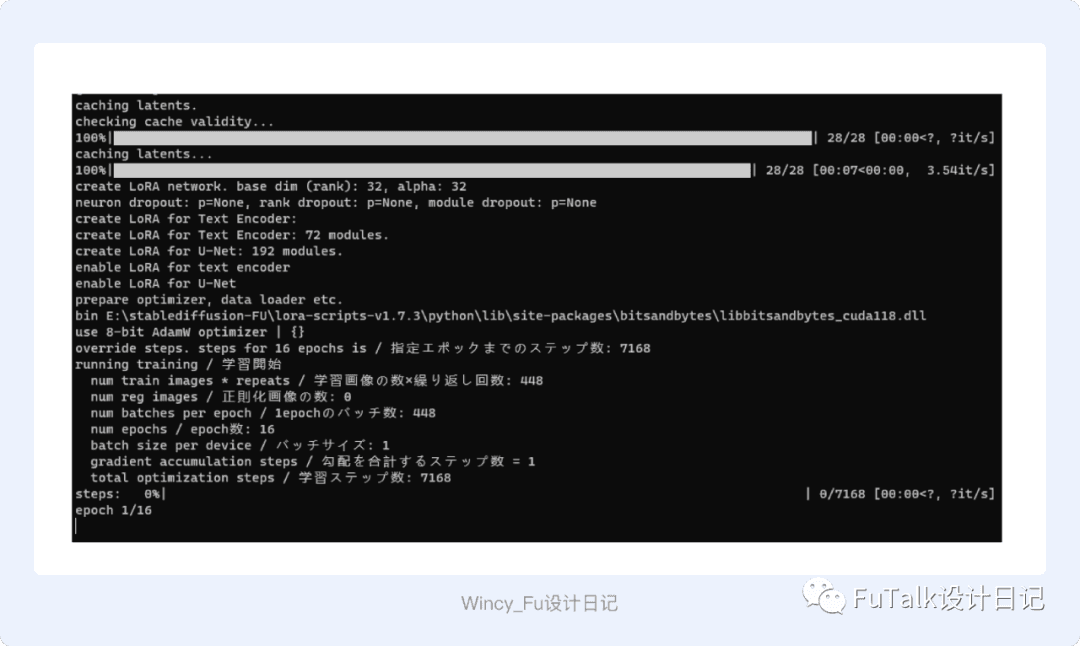
Click Start training. You can watch the progress in the terminal. It may take a while, so be patient.
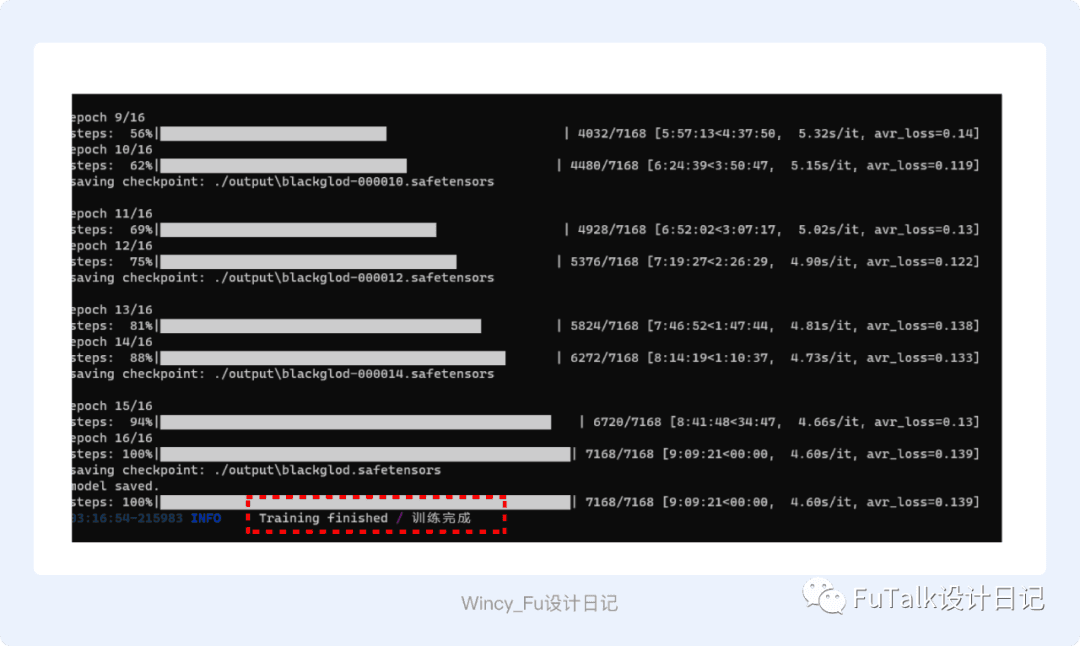
When the interface reports that training is complete, the initial LoRA training run is finished. I left my computer running overnight; it took nine hours. The next step is to test the model, evaluate what it has learned, and find settings that work well.
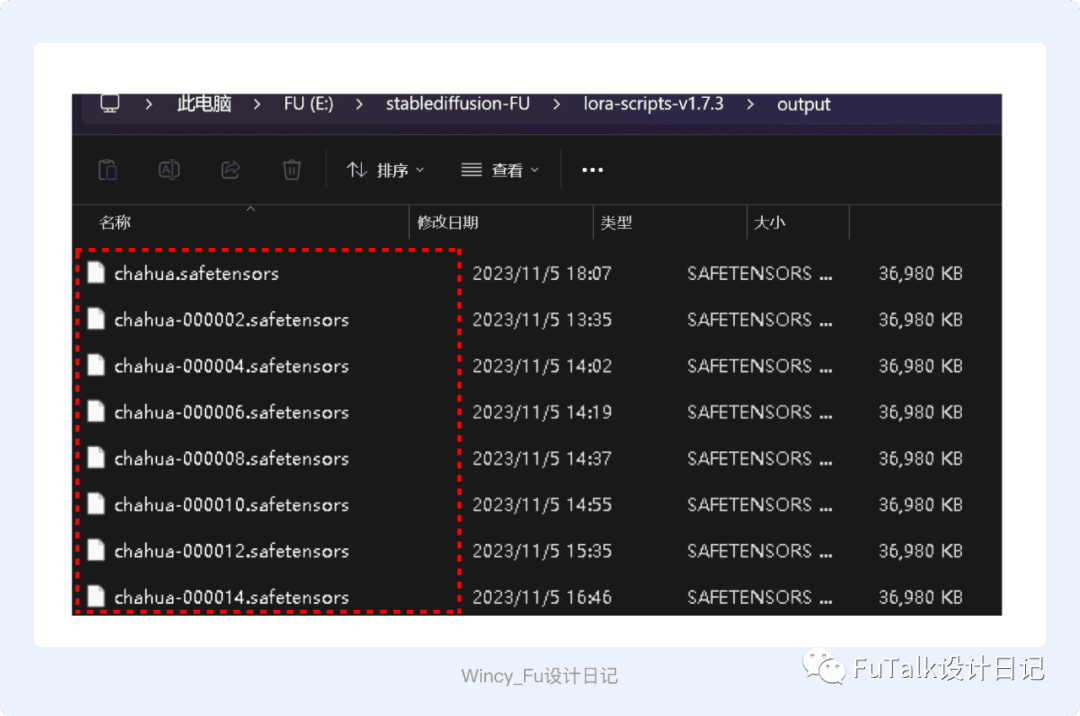
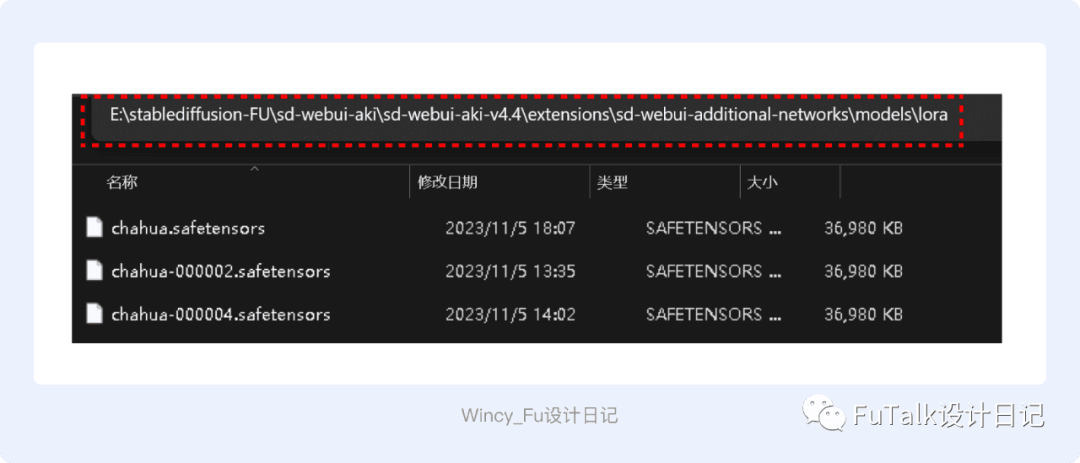
The generated LoRA files are in the training tool’s output folder, shown in my original setup as sd/lora-scriipts-v1.7.3/output. I configured it to save every two intervals across a total of 16, producing eight intermediate versions. The file without a number is the final LoRA. Check the actual folder name in your installation.
5. Test and Evaluate
Testing lets you compare base checkpoints, LoRA versions saved at different stages, generation steps, and sampling methods. These comparisons help you choose the version that produces the best results.
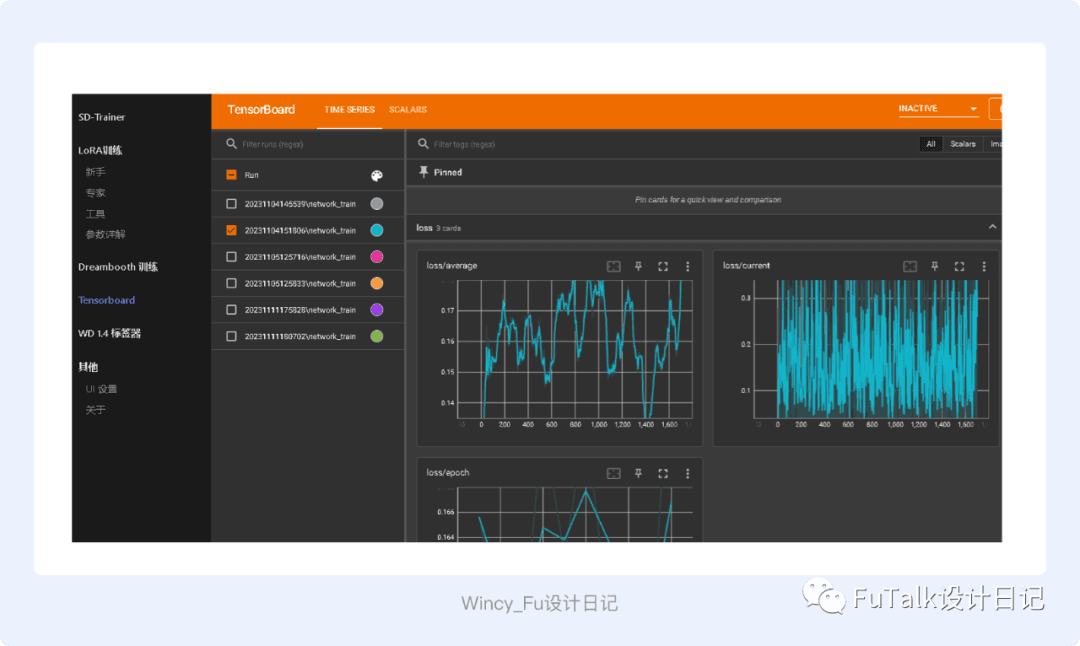
a. The Loss Curve
Each training run has its own loss curve, which I use only as a reference. I look for a gradual decrease: lower loss indicates a closer fit to the training data, but a very low value can also accompany overfitting. Rather than relying on the number alone, I use it to shortlist saved LoRA versions, then compare their outputs with an XYZ plot.
b. XYZ Plots
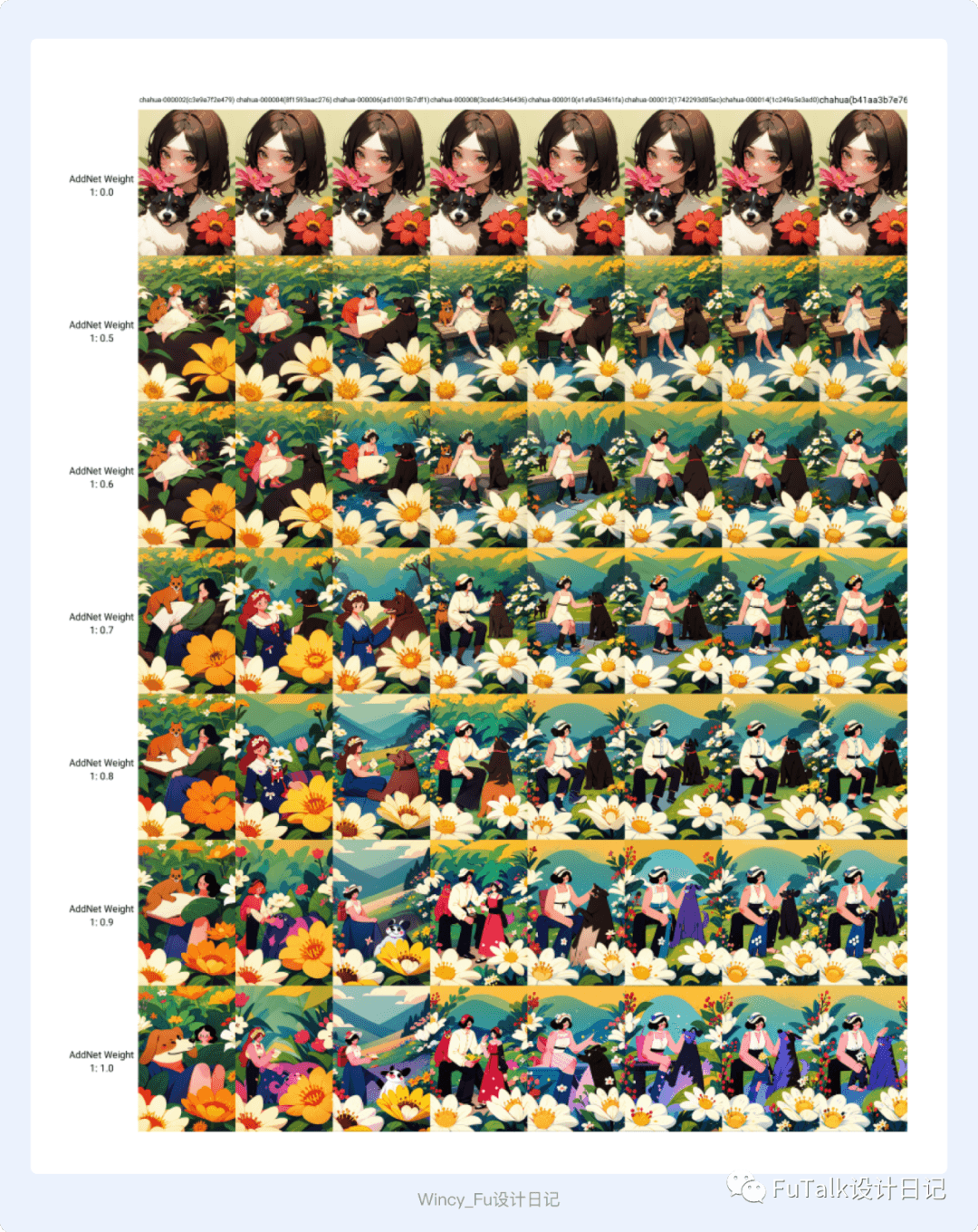
An XYZ plot provides a visual comparison of how different LoRA weights affect the output and can help reveal overfitting or underfitting. Generate multiple examples to develop a better judgment of the model.
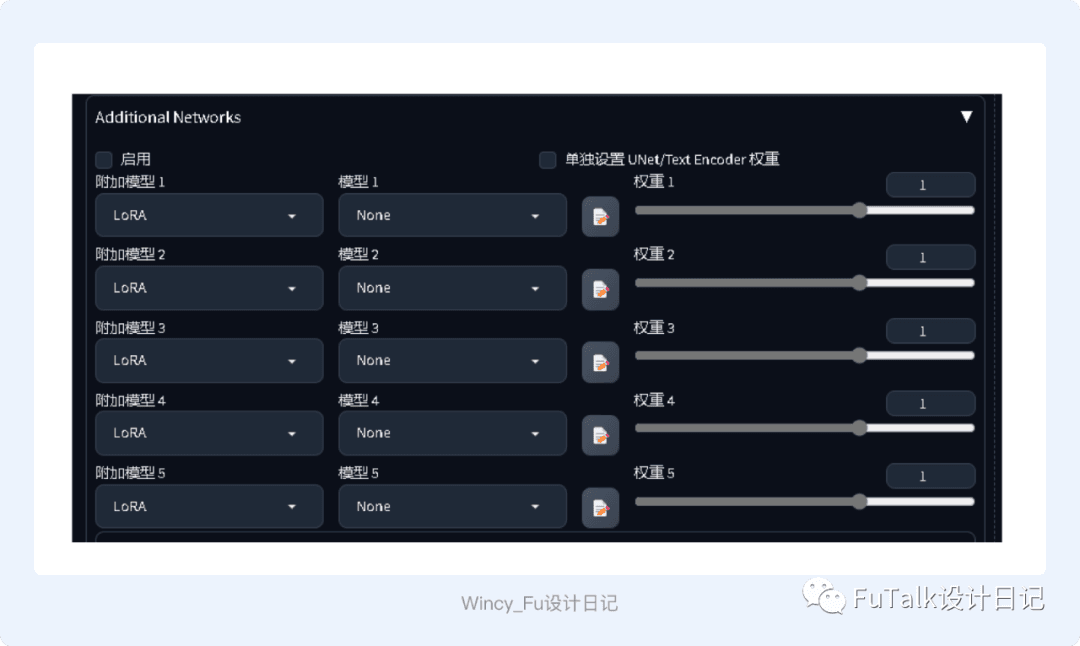
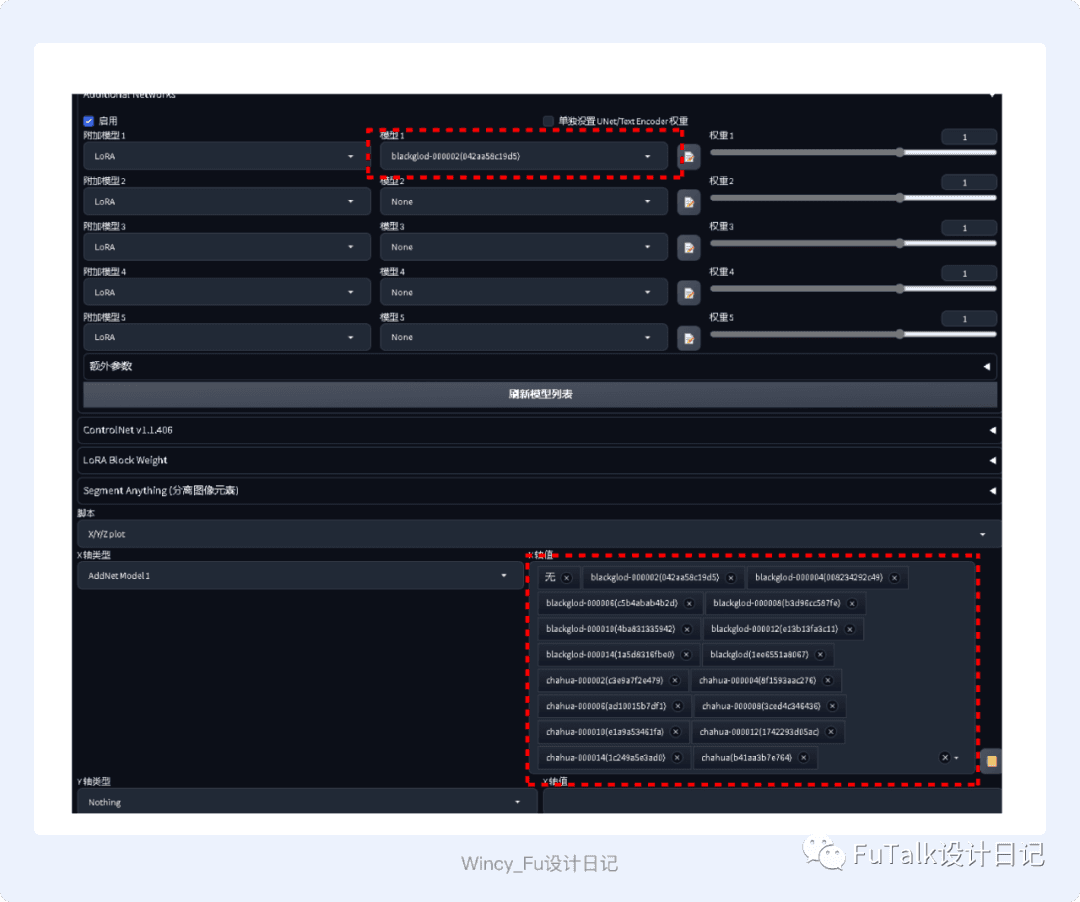
For my comparisons, I used XYZ plots with the Additional Networks extension for Stable Diffusion. This extension lets you test several LoRA models at different weights. Once installed, the controls shown in the screenshot appear.
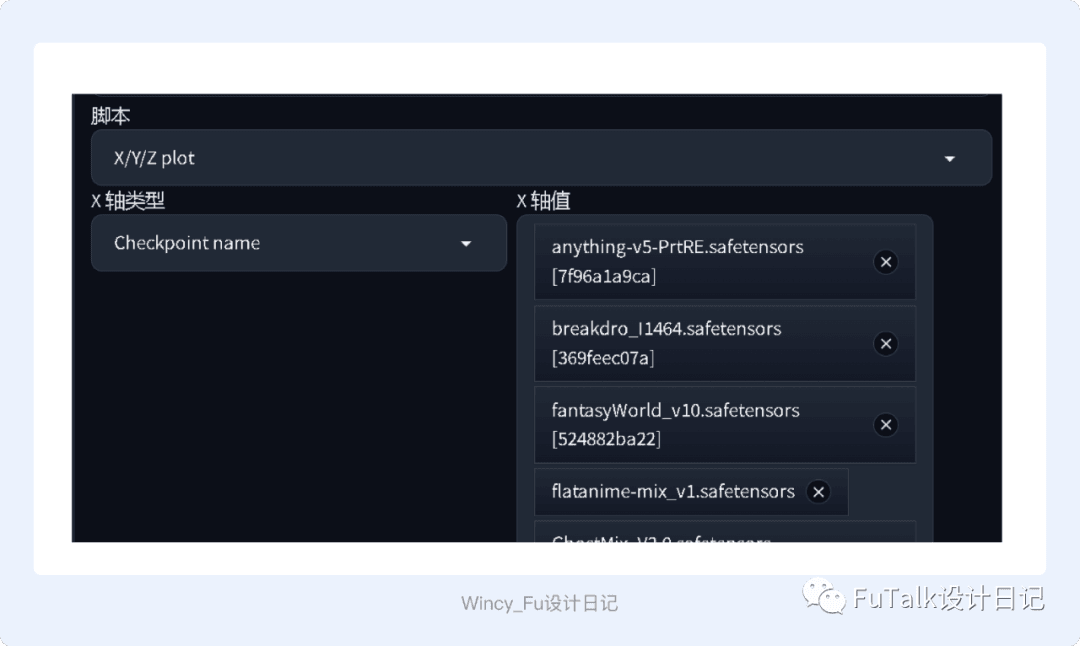
Although I had already chosen a base checkpoint for training, I also tested the LoRA with other checkpoints appropriate to its type, looking for additional compatible options.
In SD’s Scripts menu, select X/Y/Z plot. Set the X-axis type to Checkpoint, choose suitable checkpoint files available on your computer, and generate the comparison.
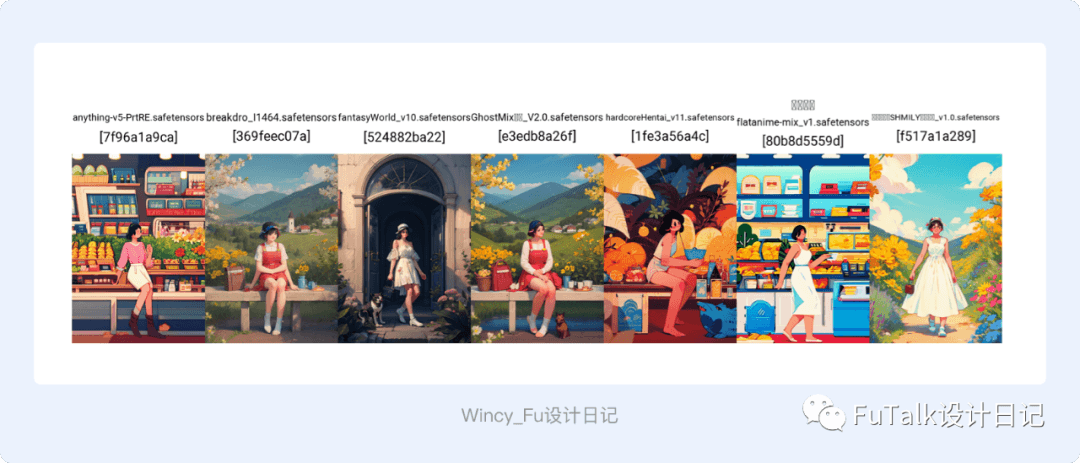
This gives you a side-by-side view of which base checkpoint produces better results with the LoRA.
Once the checkpoint is selected, compare several LoRA versions at different weights to see which settings work best.
Copy the trained LoRA files from the output folder in your training installation (shown in the original setup as sd/lora-scriipts-v1.7.3/output) to sd-webui-aki/extensions/sd-webui-additionalnetworks/models/lora. After refreshing, the eight trained versions should appear in SD.
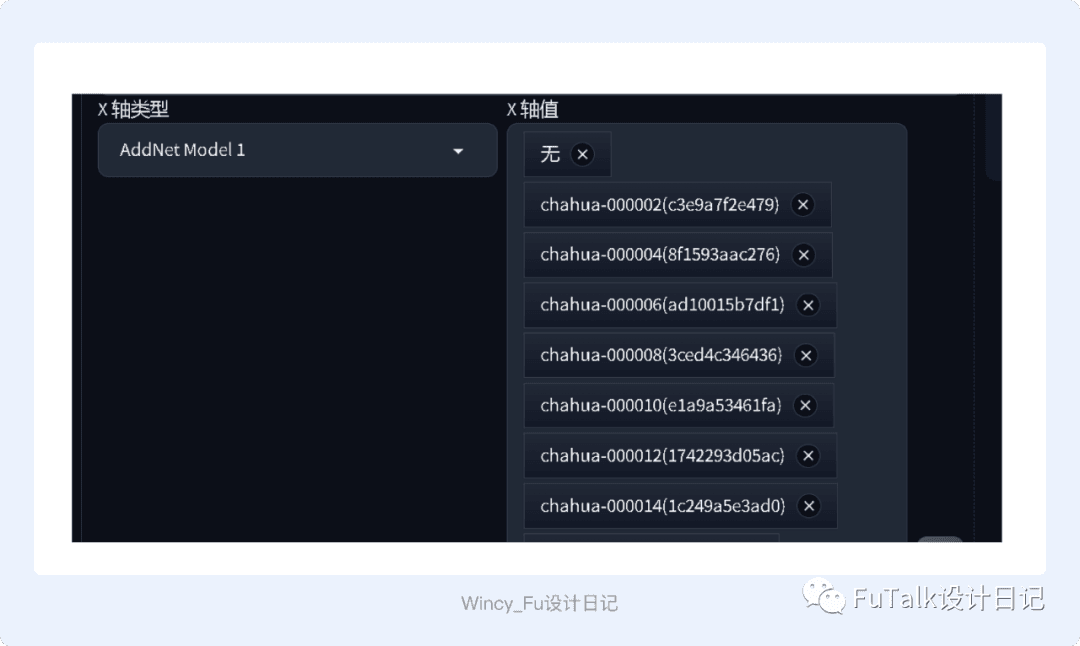
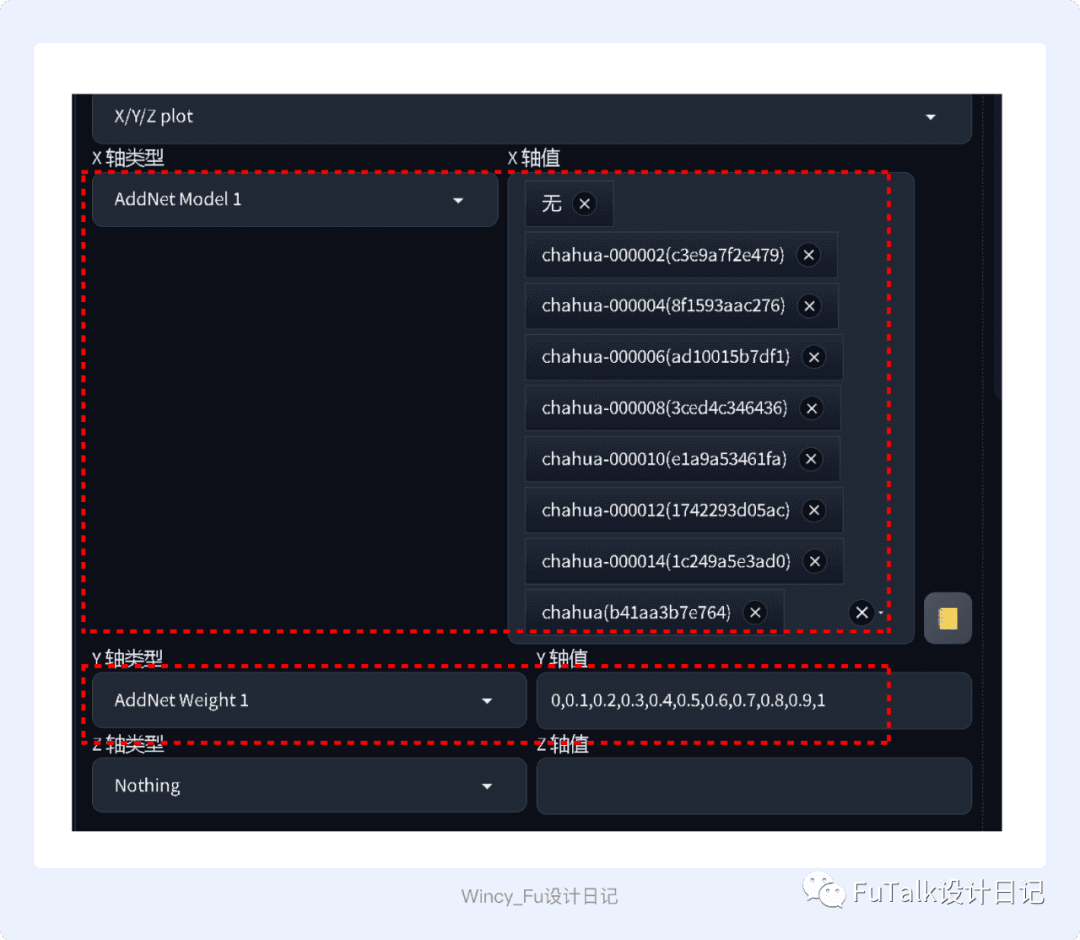
Select X/Y/Z plot. Set the X-axis type to AddNet Model 1 and choose the eight saved LoRA versions as its values. Set the Y-axis type to AddNet Weight 1 and enter the weights you want to compare. I tested values from 0 to 1.
The resulting grid shows which LoRA version produces the best results at each weight. Use it to select your final version.
You can use the same approach to compare sampling methods.
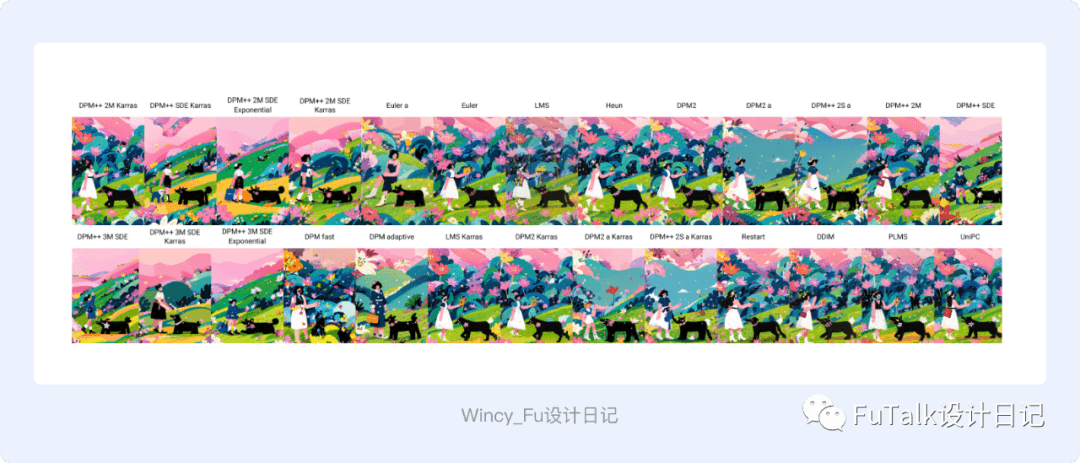
Many other settings, including generation steps, can also be compared with XYZ plots. There are plenty of parameters to explore if you would like to experiment.
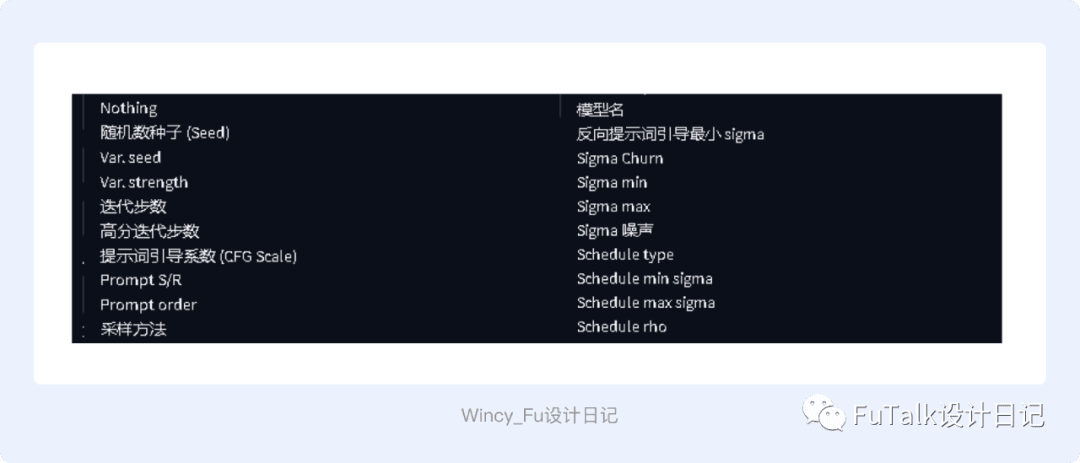
That completes the training process I used. Before trying it, everything seemed difficult. Once I started, it felt more manageable; writing it up made the steps clearer still. Here are a few problems I encountered and how I handled them.

1. “The Paging File Is Too Small for This Operation to Complete”
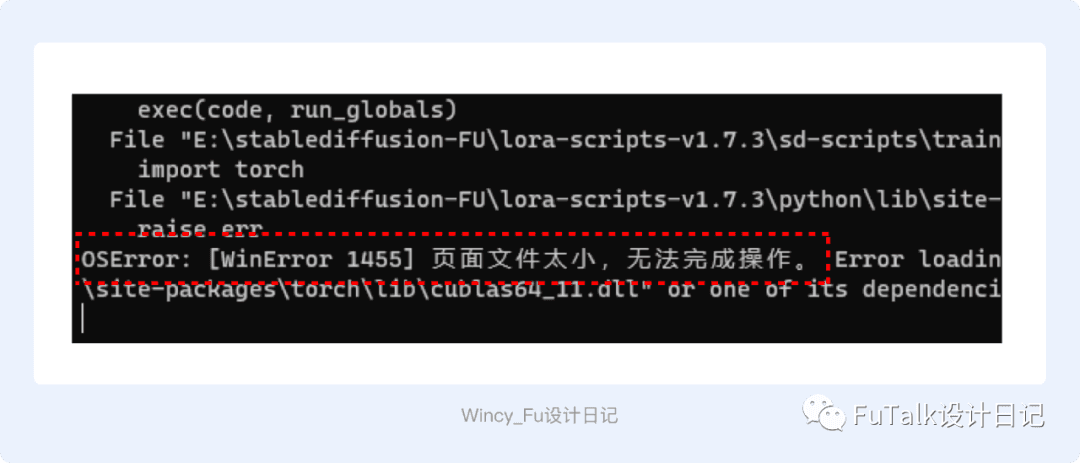
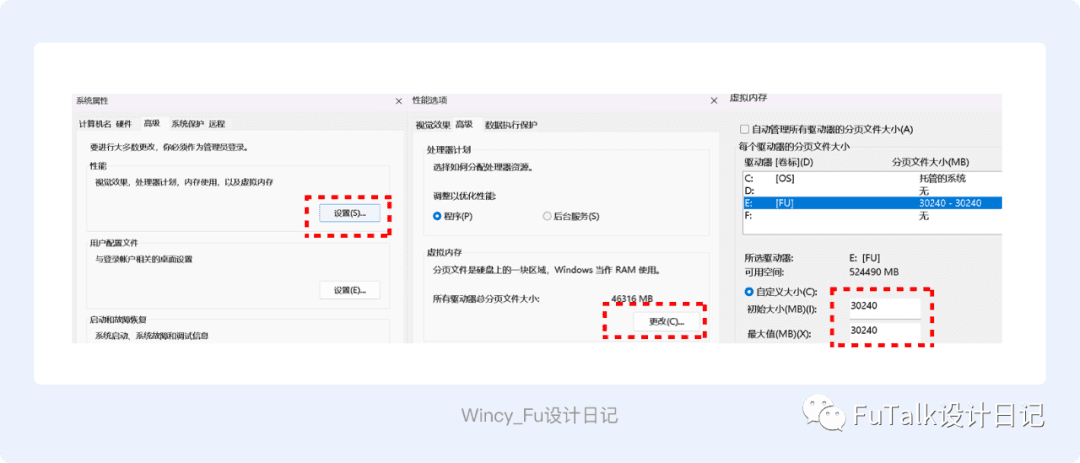
This is likely to indicate insufficient virtual memory. In Windows, open Settings → System → About → Advanced system settings. Then go to System Properties → Advanced → Performance Settings → Advanced → Virtual memory → Change, and increase the paging file size.
2. Additional Networks Shows “None” When Selecting a Model
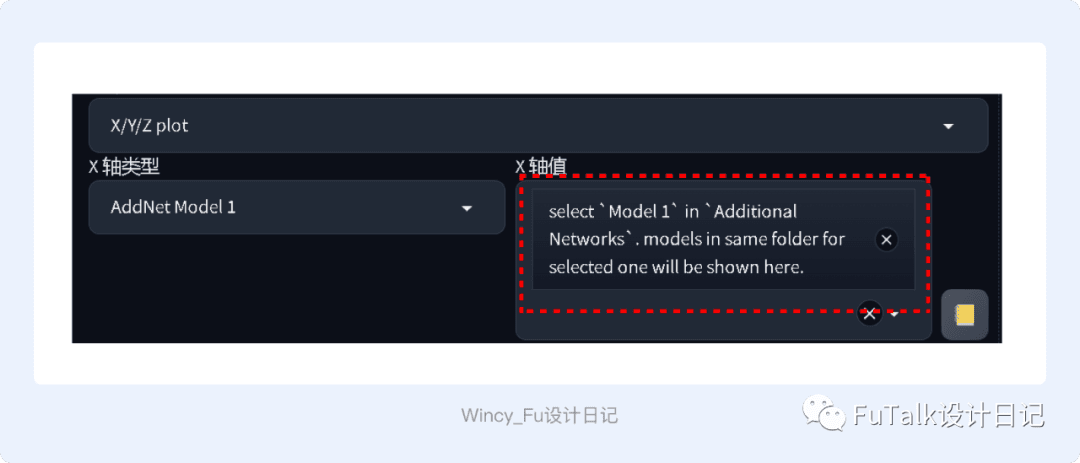
First, check that your LoRA files are in sd-webui-aki/extensions/sd-webui-additionalnetworks/models/lora. If the location is correct but the problem remains, try selecting a LoRA in Additional Networks first, then removing any unwanted LoRA entries from the XYZ axis values.


LoRA already has many commercial uses. A model trained on a brand character can save time when creating visuals for different campaigns and settings. In e-commerce, clothing can be trained into a LoRA and shown on an AI-generated model, reducing the need for a conventional shoot. Other situations that would normally require a person in front of a camera can also be explored with LoRA.
- Brand-Character LoRAs
A brand-character LoRA can quickly generate designs that preserve the character’s appearance while placing it in different settings. It simplifies parts of the design process, giving designers more time to focus on visual quality, variety, and efficiency.
It can be used for online campaign posters, splash screens, and banners, as well as offline display boards and printed promotional materials.

- E-commerce LoRAs
LoRA training can help create an AI model for an online shop and show it wearing particular clothing. There are also LoRAs for e-commerce backgrounds. These approaches can reduce the time, staffing, and production costs involved in arranging models, layouts, lighting, and photography.

- Architectural and Interior LoRAs
A LoRA trained on an interior or architectural style can be combined with ControlNet to create visualisations based on a client’s actual floor plan, making the process much faster.
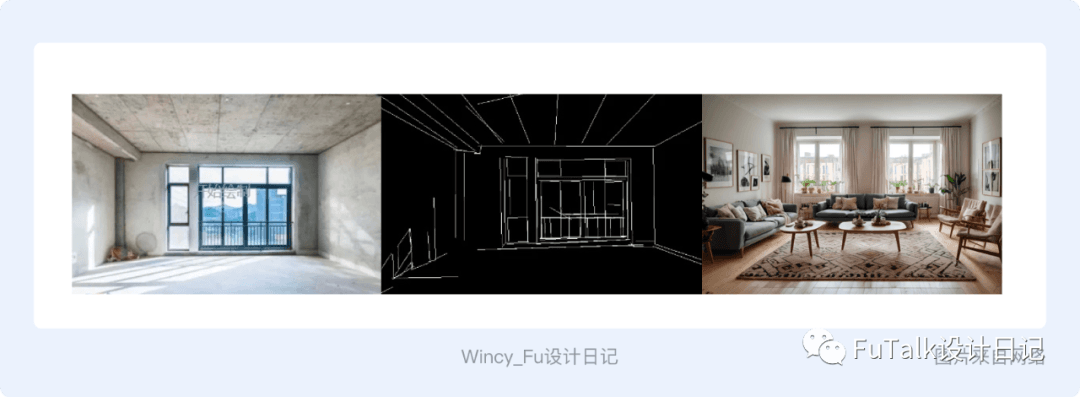
There are many other applications for LoRA, including possibilities still to be explored. Try experimenting and training a model of your own.

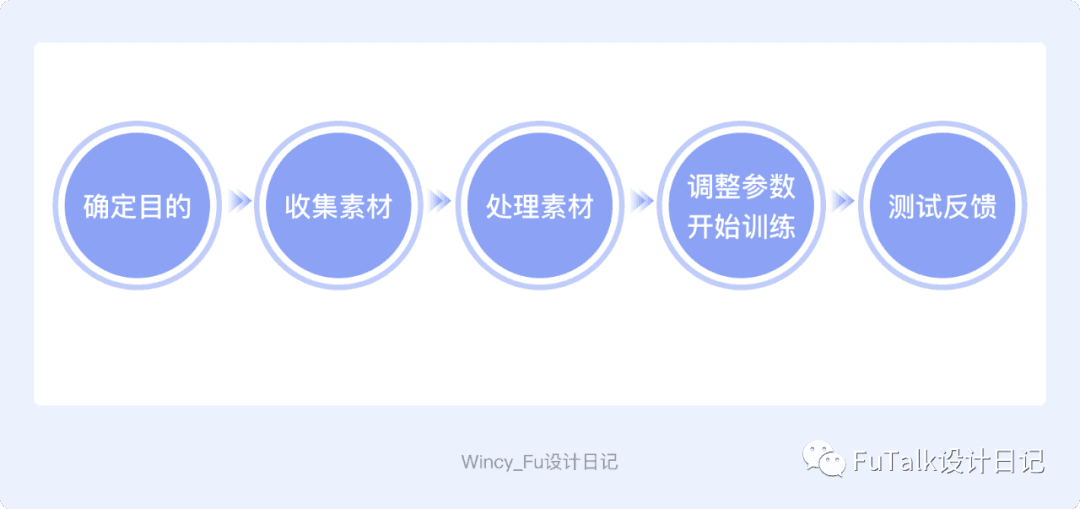
After all that detail, my training process comes down to five steps:
1. Collect the Training Images
2. Generate Captions in Qiuye’s SD WebUI
3. Edit Captions in BooruDatasetTagManager
4. Train the LoRA with Qiuye’s Training Tool
5. Test the Trained LoRA
Key Lessons from Training a LoRA
1. The dataset matters enormously. Collect high-quality, clear images so your training starts with good material.
2. Treat other people’s parameters as references. Your dataset and training goal will differ, so avoid copying settings blindly. This applies to the figures in this article too.
3. Keep testing and experimenting. As a beginner, start with the small goal of successfully training one LoRA to build confidence. Then try the advanced mode, learn what the other parameters mean, and explore the differences between training a specific subject and a broader style. You may discover results you did not expect.

P.S. This article was first published on November 16, 2023. The interface may change as SD WebUI is updated.